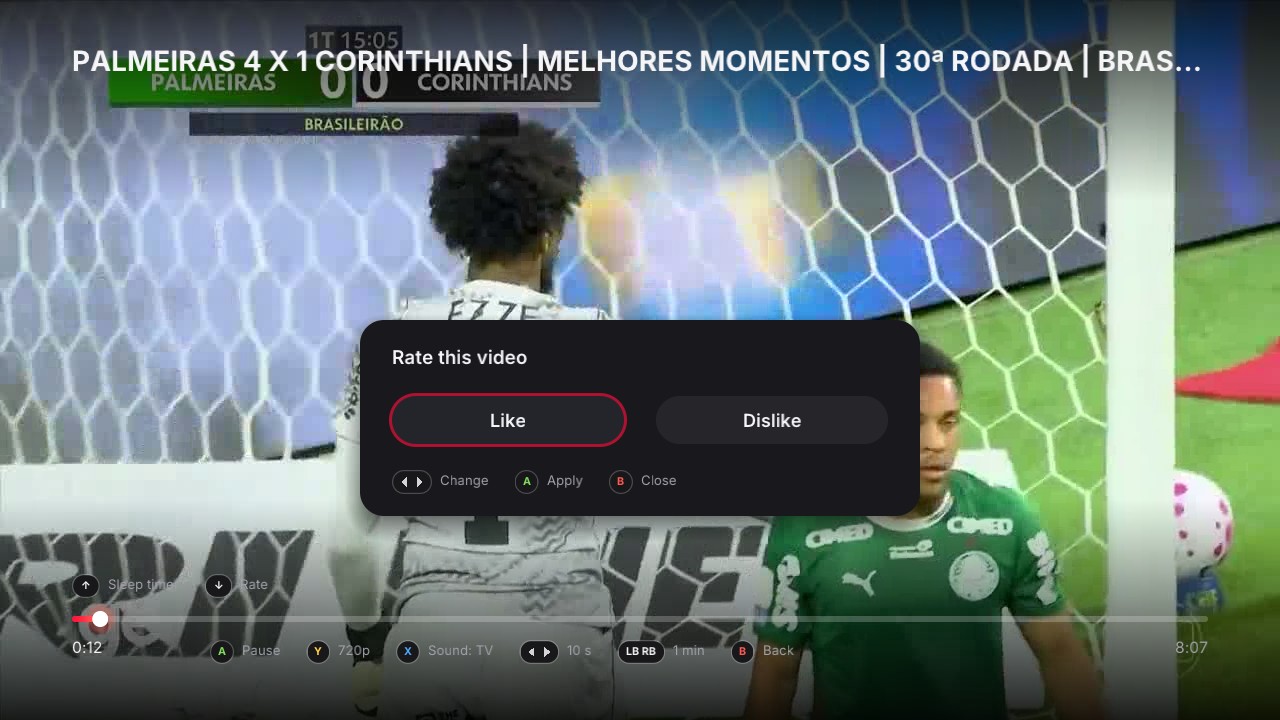
A controller-first player
Press down in the player to like or dislike without leaving the video.
 Tube360
YouTube, native on Xbox 360. Open source. Built for your controller.
Tube360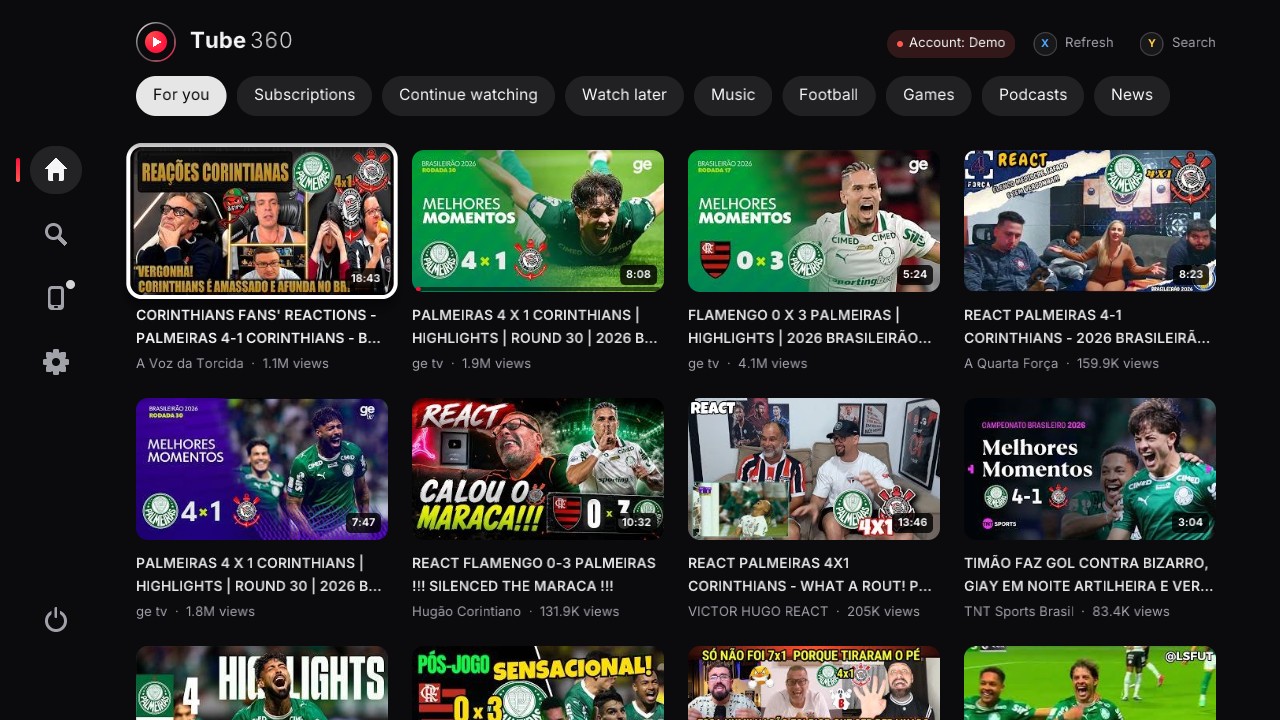

PALMEIRAS 4 X 1 CORINTHIANS | MELHORES MOMENTOS
Up next in 8 s
Try it:arrow keys, click or a controllertap a video or use the controls below
Plug in a controller
A hands-on preview of the interface. The app itself runs on your Xbox 360.
A small server converts the video on the fly. Tube360 receives it over your home network and decodes it on the console’s own CPU.
Python + yt-dlp + ffmpeg
Node.js for Cast and your accountNative .xex, launched from Aurora
720p at 30 fps, decoded on the CPUSmall footprint. About 140 MB RAM and ~0% CPU while idle. Playing 720p uses around three quarters of one CPU core.
The server can also run on a small VPS or an old Android phone.
Your videos, your account, your controller.
With a few good reasons to stay on the sofa.
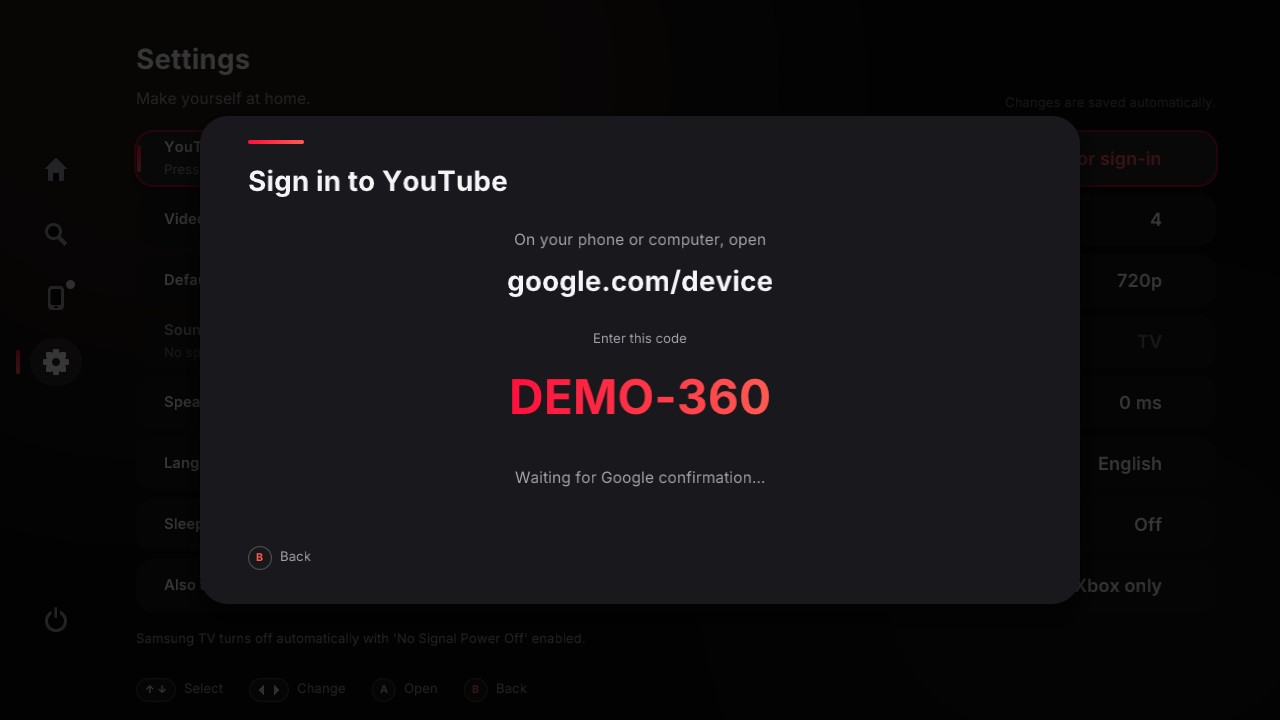
Press down in the player to like or dislike without leaving the video.
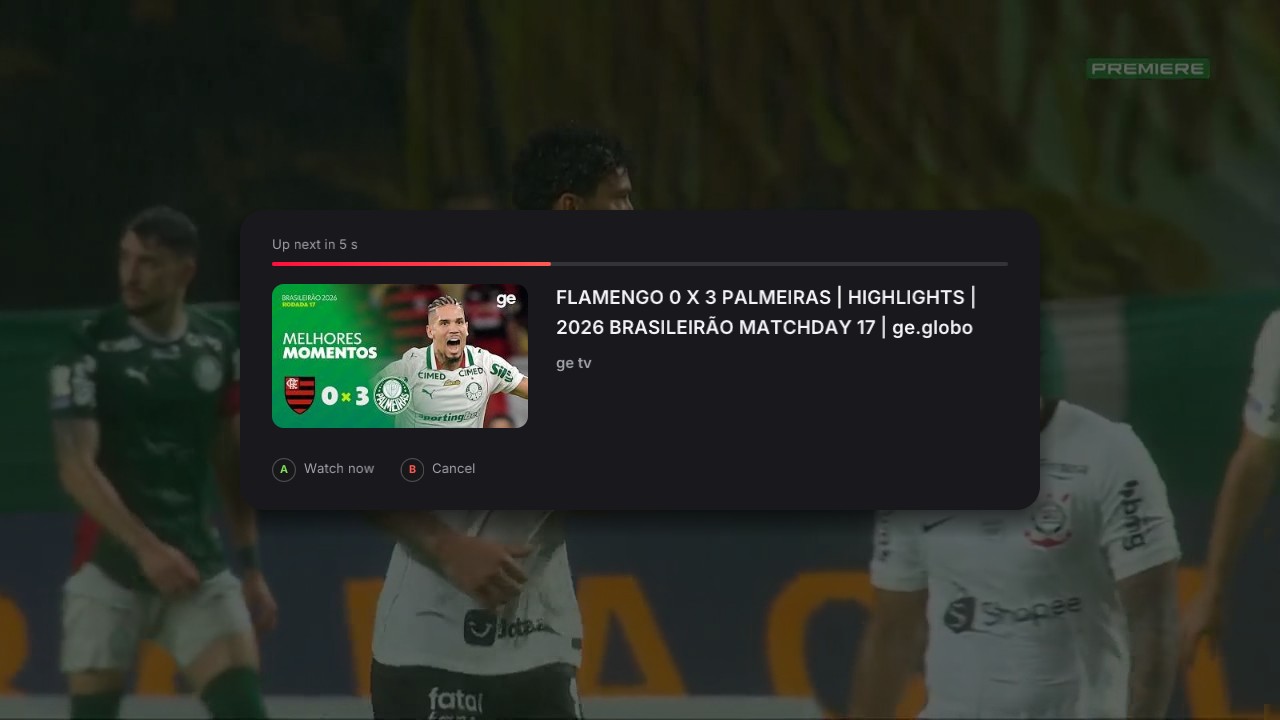
At the end of a video, an 8-second countdown gives you time to choose: A to watch now, B to cancel.
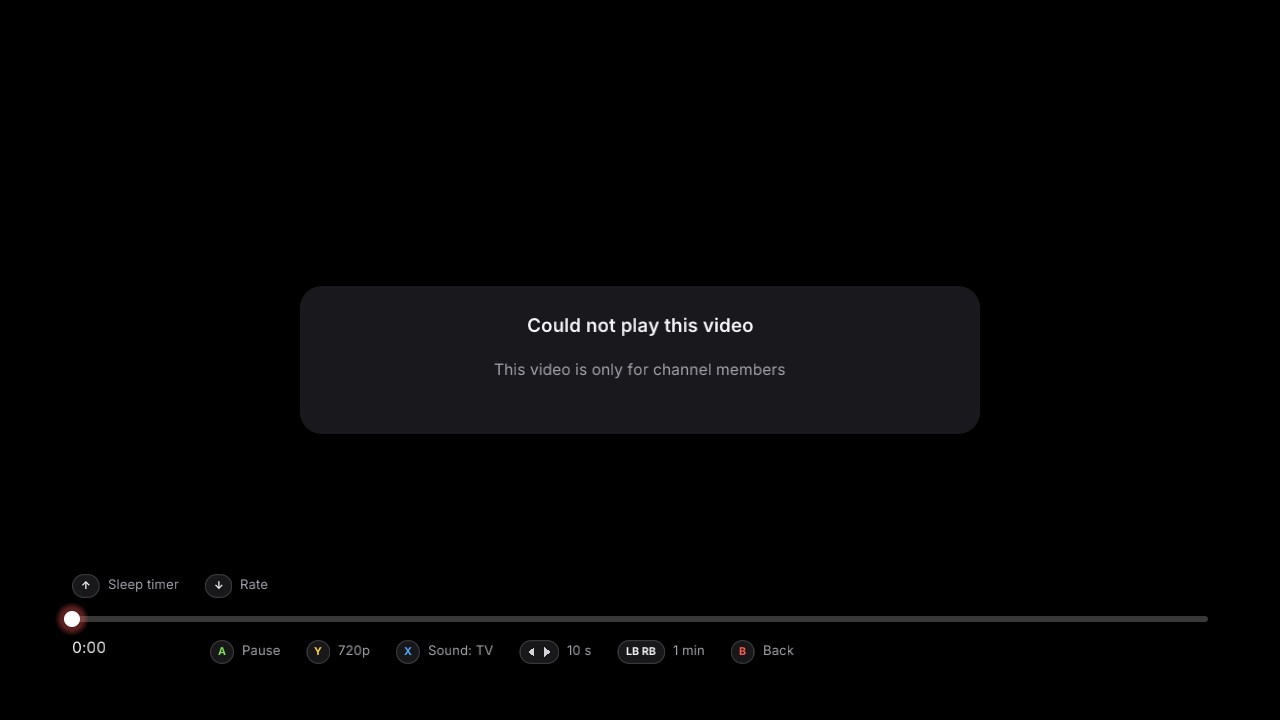
The server keeps yt-dlp up to date. Members-only videos stay out of the grid, and playback refusals tell you why.
Use the interface in English or Portuguese, with familiar Xbox One / Series style button prompts.
A native app, a small server, and your home network.
The Python server should also run on macOS and Windows; the service scripts use systemd.
Set up the Python server on your PC. Add the Node.js service for your YouTube account and Cast.
git clone https://github.com/PedroHenrique0713/tube360.git
cd tube360
python3 -m venv .venv
.venv/bin/pip install -r server/requirements.txt
cp server/config.example.json server/config.json
(cd cast && npm install)Extract the ZIP and copy its Tube360 folder to Hdd1:\Games\ on the Xbox. Edit server.txt in that folder with your PC’s IP and port.
Replace the example IP with your PC’s address. Run this in the extracted app folder, then copy server.txt to the Xbox.
printf '192.168.0.10 8091\n' > server.txtOn Linux, install the services to start the server and Cast at login and keep yt-dlp updated. Launch from Aurora and sign in with the TV code.
tools/install-services.shIf Tube360 is useful to you, a star on GitHub is the best thank-you.
Give Tube360 a star1